 GrooveCutter
How-to
The app works like a terminal app: one screen at a time, every key listed at the bottom, and the mouse optional.
1. Set it up
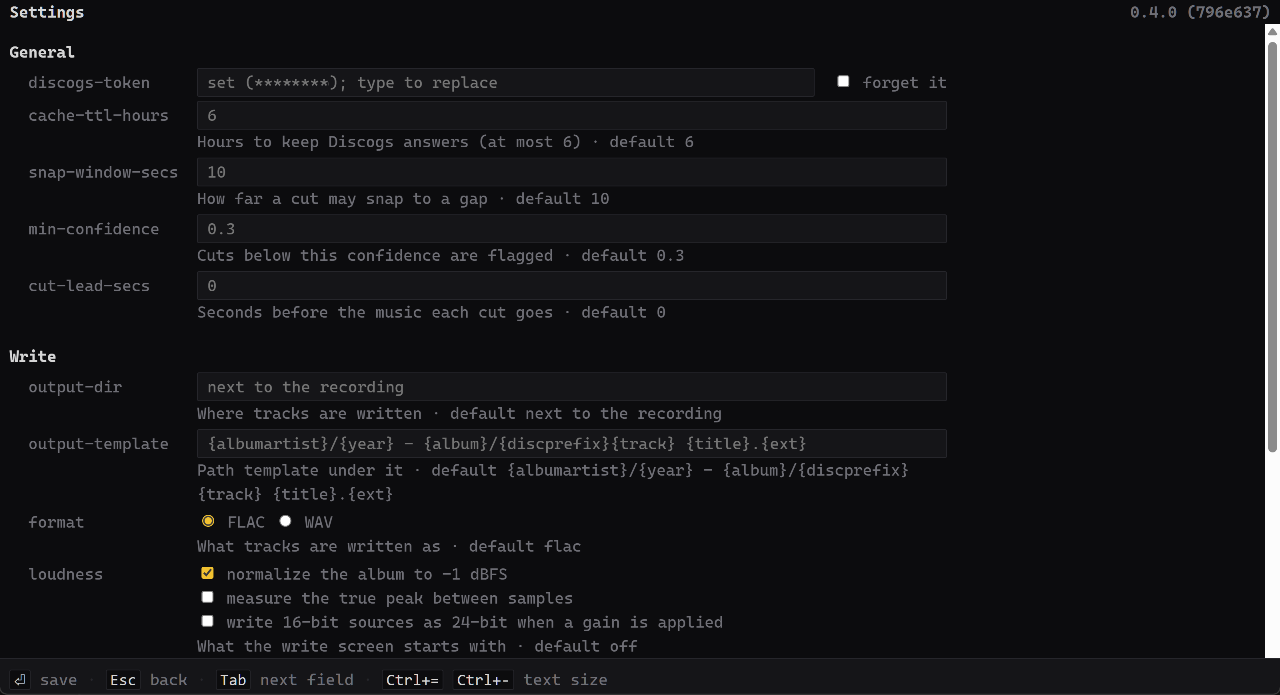
Get a Discogs token at discogs.com/settings/developers and paste it into the settings (Ctrl+,). That's also where the output folder, the file name template, the format (FLAC unless you pick WAV) and the recording input are.
2. Record
Ctrl+R finds the release on Discogs, then gets ready: set the gain by the level meters and Enter starts. The whole record, every side and flip, goes to one WAV file as captured, never resampled. The side being recorded and its cuts draw in as it plays, and Enter stops and goes straight to the review.
On Windows the input is opened in exclusive mode, so Windows' mixer stays out of the way.
Or record in your usual program: each side to its own WAV file, or the whole album to one.
3. Open recordings
Recorded elsewhere? Ctrl+O, or drop the files on the window. Cuts saved from an earlier review are picked up.
4. Find the release
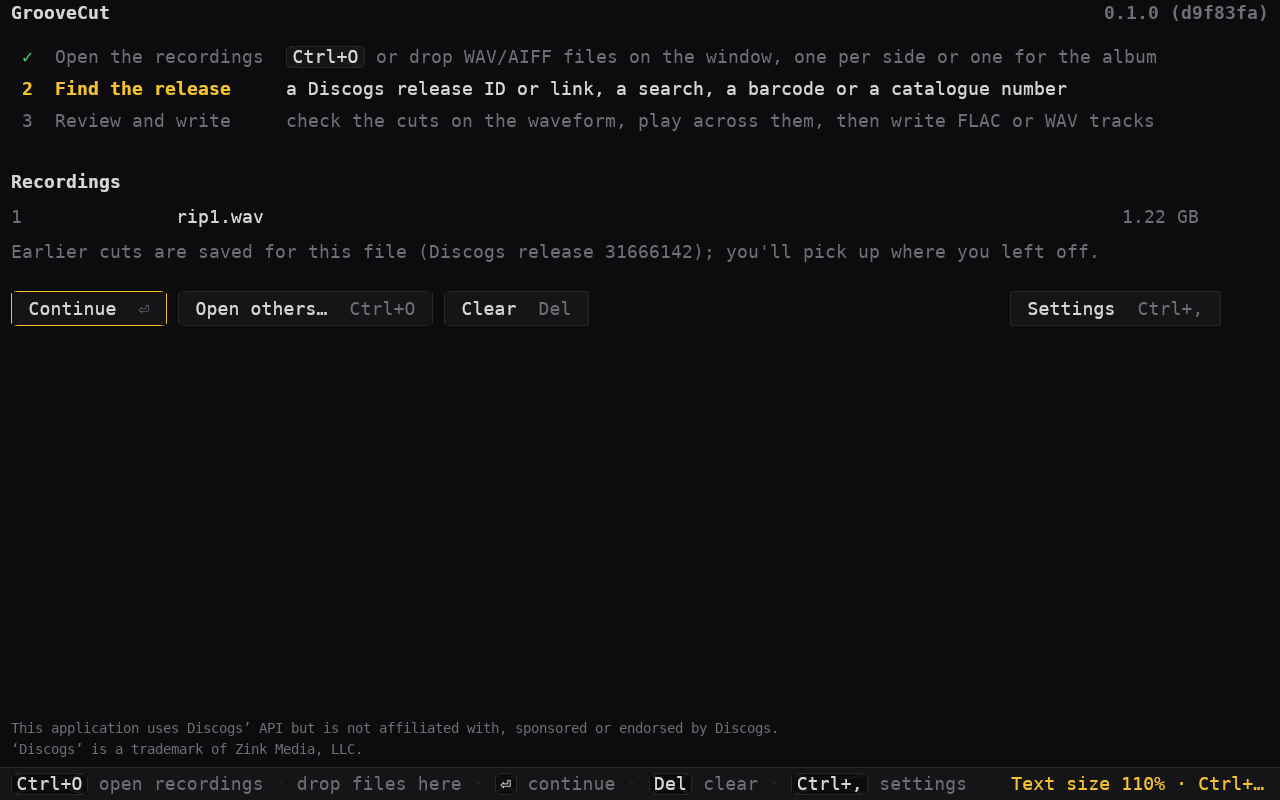
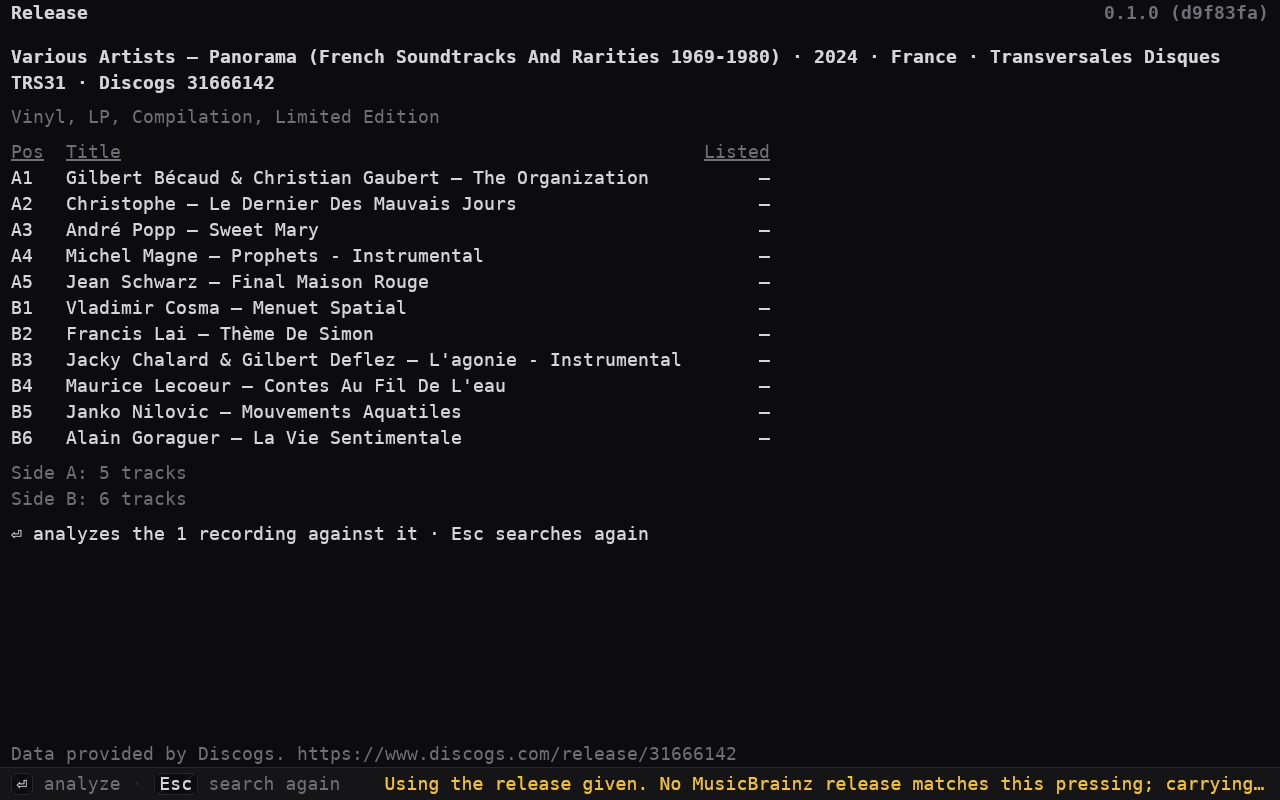
A Discogs ID or link, a search, a barcode or catalogue number, or leave it blank and it guesses from the file names. The cursor starts in the box, so just type, or press → to correct what's there. Enter analyzes the recordings against it.
5. Review
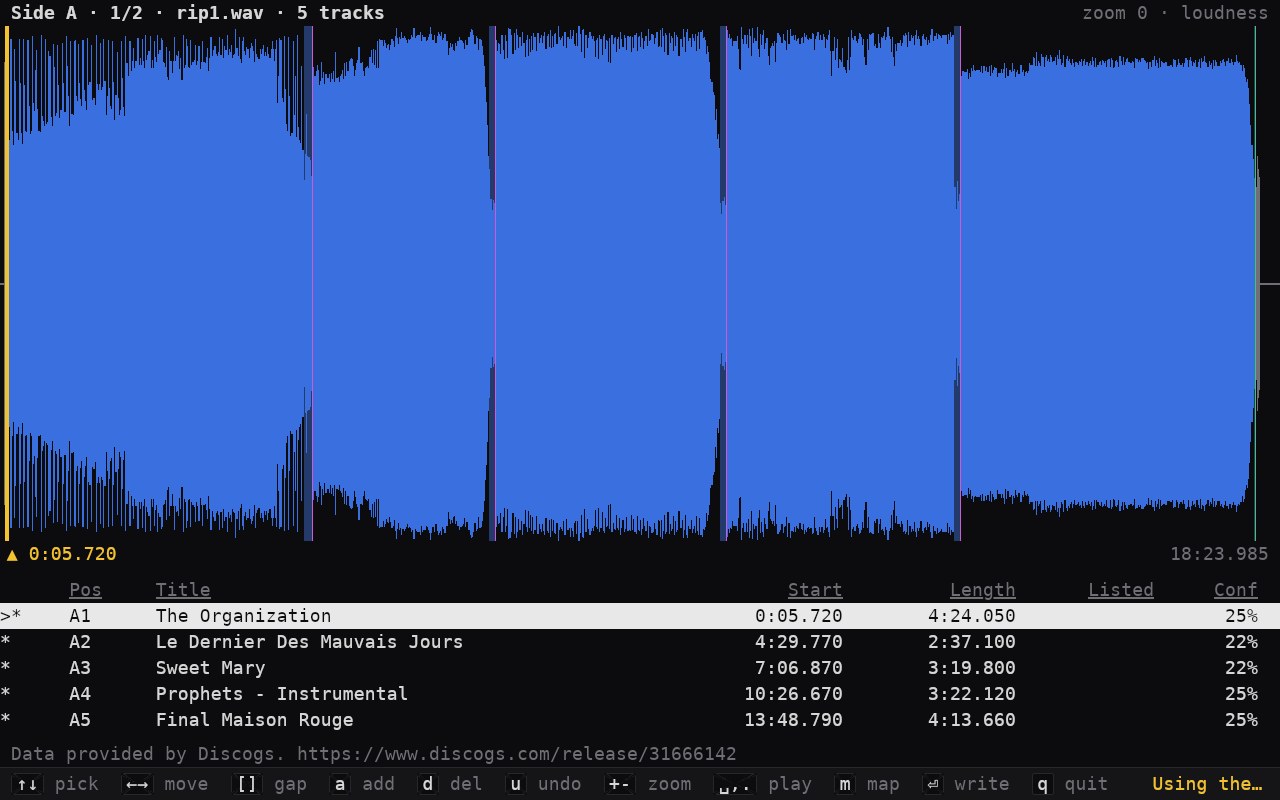
Each side opens on its start marker. Cuts in red and tracks marked
! deserve a listen.
+ zooms in on a cut, with the detected gap shaded:
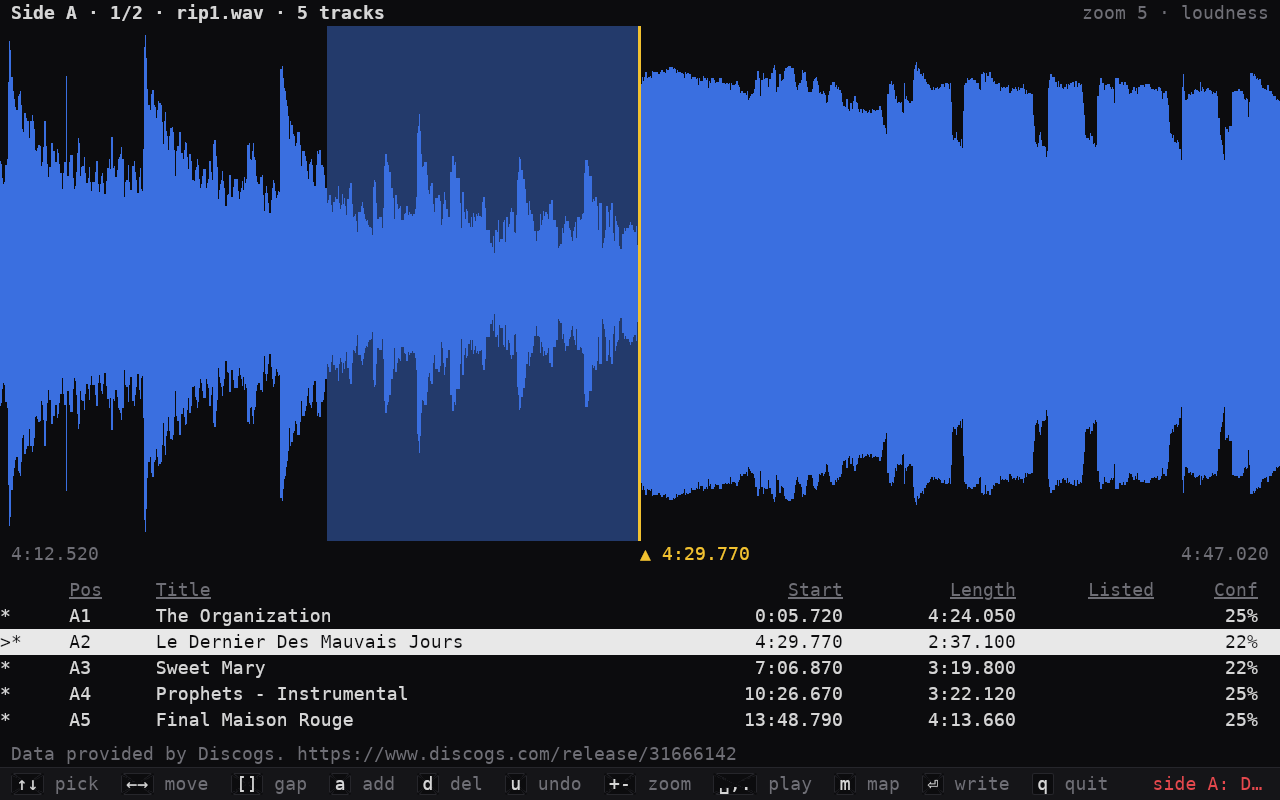
| ↑ ↓ | select a cut |
|---|---|
| ← → | move it 100 ms (Shift 10 ms, Ctrl 1 s) |
| Space | play 3 s either side of the cut; Esc stops |
| , . | play just before / just after the cut |
| a d | add / delete a cut |
| + - | zoom in / out |
| < > | scroll half a screen (or the mouse wheel) |
| Tab | next side |
| Enter | write the tracks |
| q | quit without writing |
The usual routine: + to zoom in, ← → to move the cut, , and . to preview it, ↓ to the next cut, and repeat. Then Tab to do the next side.
6. Write
Enter on the review goes to writing: FLAC or WAV, normalize, and where to. Tagged
files land in Artist/Year - Album/01 Title.flac next to the recordings unless the
settings say otherwise.
Every screen lists its keys at the bottom. Ctrl+=, Ctrl+- and Ctrl+0 change the text size.